Skip to content
Internet Protocol Television has quietly become the most significant shift in how UK households watch TV since the arrival of satellite broadcasting. Instead of receiving signals through a dish or aerial, your television content travels over the same broadband connection you use for everything else. That single change unlocks a level of flexibility, quality, and value that traditional broadcast simply cannot match.
If you have ever sat down to watch a major live sports event only to see your screen freeze at the worst possible moment, you are not alone. Around 10 to 15% of UK IPTV users report buffering during peak-traffic periods, and most guides offer vague advice that does not actually solve the problem. This guide does things differently. You will get the precise technical steps, real bandwidth figures, and device-specific settings that put you in control of your streaming experience.
Whether you are completely new to IPTV or you have been using it for years and still encounter the occasional frustration, this 2026 UK guide covers everything from understanding how the technology works right through to squeezing every last drop of performance from your Fire TV Stick.
Key Takeaways
- Internet Protocol Television delivers live TV and on-demand content over your broadband connection, requiring a minimum of 15 Mbps for HD and 25 to 50 Mbps for 4K per stream.
- Peak-hour buffering affects roughly 10 to 15% of UK users and is most often caused by ISP throttling or speeds that fall well below advertised contract figures during busy periods.
- Specific Fire TV Stick settings, including switching to 5 GHz Wi-Fi, disabling data monitoring, and enabling a VPN, can eliminate the majority of buffering issues without any hardware upgrade.
- VIP server infrastructure with anti-freeze technology and dedicated CDN routing is the single most effective way to guarantee stable 4K live streams during major events.
- A 12-month subscription plan offers the best per-month value for families, often saving significantly compared to rolling monthly arrangements.
Understanding Internet Protocol Television in 2026
Internet Protocol Television is a method of delivering television content through an internet protocol network rather than through conventional terrestrial, satellite, or cable formats. In plain terms, your TV picture is broken into data packets, sent across your broadband connection, and reassembled on your screen in real time. This is fundamentally different from standard streaming apps, and understanding that distinction matters when you are troubleshooting performance or choosing hardware.
A standard streaming app, such as a catch-up service, delivers content that has already been recorded and stored on a server. You request it, it buffers a portion ahead of your playback position, and any small hiccups in your connection go unnoticed. Live IPTV does not have that luxury. Because you are watching in real time, every data packet must arrive on schedule. There is no buffer padding. A temporary dip in your connection speed shows up instantly as a freeze or pixelation.
This is why the quality of the IPTV infrastructure matters so much, and why a service built on dedicated VIP servers will always outperform one relying on shared or overloaded routing. For a detailed technical overview of how the protocol itself functions, the Wikipedia entry on Internet Protocol television provides a solid foundation.
What IPTV actually delivers in 2026
A modern premium IPTV subscription gives you access to a content library that dwarfs anything a traditional pay-TV package can offer. We are talking about tens of thousands of live channels covering sports, movies, news, kids, international, and PPV events, alongside a video-on-demand library running into hundreds of thousands of titles. All of it streams at HD, FHD, 4K, or even emerging 8K quality, depending on your broadband speed and the capability of your device.
The UK broadband requirement for a single 4K IPTV stream sits between 25 and 50 Mbps. For standard HD at 1080p, 15 to 20 Mbps is sufficient. If your connection consistently delivers those speeds during peak evening hours, which is the critical qualifier, IPTV will serve you extremely well.
Why Peak-Hour Buffering Happens and How to Fix It
Around 10 to 15% of UK IPTV users experience noticeable buffering during high-traffic periods such as major live sports events. The cause is almost never the IPTV service itself. It is almost always a combination of ISP throttling and the gap between advertised broadband speeds and the speeds you actually get when your whole neighbourhood is online simultaneously.
The ISP throttling problem
Many UK broadband providers actively manage their network traffic during peak hours, typically between 7pm and 11pm. When they detect sustained high-bandwidth usage that looks like video streaming, they reduce the priority of those data packets. Your advertised 100 Mbps connection might be delivering 60 Mbps at 9pm on a Saturday evening during a major sporting event. That is still enough for a 4K stream, but only just, and any additional demand on your router or network tips it over the edge.
The fix involves two things working together: a VPN that disguises your IPTV traffic from your ISP, and a properly configured device that is not wasting bandwidth on background processes. Both are covered in the sections below.
Router placement and congestion
It sounds obvious, but your router’s physical position and the number of devices connected to it make a real difference. If your Fire TV Stick is in a room far from the router, connected to a 2.4 GHz band shared with your phone, laptop, and smart home devices, you are creating your own congestion problem before the ISP even gets involved. The single most impactful free fix is switching your streaming device to a 5 GHz connection or, better still, using an Ethernet adapter.
For more detail on diagnosing and eliminating buffering before your next subscription, the guide on testing IPTV free trials properly walks through a structured approach to validating stream quality before you commit.
The Ultimate Fire TV Stick Setup Guide for Zero Buffering
The Fire TV Stick is the most popular IPTV device in the UK, and it is also the most frequently misconfigured. Out of the box, it runs several background processes that consume bandwidth and processing power, and its default settings are not optimised for live IPTV. These are the exact steps that most guides skip over.
Step 1: Connect to the 5 GHz Wi-Fi band
Go to Settings, then Network, and check which Wi-Fi network your stick is connected to. If it shows a 2.4 GHz connection, switch to your router’s 5 GHz band. The 5 GHz band has significantly less interference from neighbouring devices and neighbouring routers, and it handles the sustained throughput that live 4K streaming demands. The trade-off is slightly reduced range, so if your router is in another room, consider an Ethernet adapter for the Fire Stick instead.
Step 2: Set display resolution to Auto or 4K
Go to Settings, then Display and Sounds, then Display. Set the resolution to Auto or to the highest resolution your TV supports. When this is left on a lower setting, your device is down-scaling content in software rather than streaming at the native resolution, which wastes processing resources and can introduce visual artefacts on some panels.
Step 3: Turn off data monitoring
Go to Settings, then Preferences, then Data Monitoring, and switch it off. This feature runs a background process that constantly inspects and limits data usage. For IPTV, where sustained high bitrate is essential, it actively interferes with your stream quality even though it was designed to help users on limited data plans.
Step 4: Enable developer options and allow apps from unknown sources
Go to Settings, then My Fire TV, then Developer Options. Turn on ADB Debugging and then turn on Apps from Unknown Sources. This is required to install the IPTV player application of your choice, such as IPTV Smarters Pro, which does not come pre-installed. Without this step, you cannot sideload any IPTV player application onto the device.
For a complete walkthrough of installing and configuring IPTV Smarters Pro, the dedicated IPTV Smarters Pro setup guide covers every screen in detail.
Step 5: Install and enable a VPN
Install a reputable VPN application from the Amazon Appstore. Connect to a UK server before launching your IPTV player. This prevents your ISP from identifying and throttling your streaming traffic. A VPN adds a small overhead, typically 5 to 10 Mbps of extra bandwidth consumption, so ensure your connection comfortably exceeds the minimum required speed before accounting for it.
If you want the full picture on Fire Stick optimisation for IPTV, the comprehensive IPTV Firestick installation guide goes into additional detail on player configuration and performance tuning.
Speed targets to aim for at the device level
- 4K streaming: at least 25 Mbps measured at the device during peak hours
- FHD 1080p streaming: 15 to 20 Mbps measured at the device during peak hours
- HD 720p streaming: 10 to 15 Mbps measured at the device during peak hours
Measuring these speeds during the evening hours, not at midday, gives you a realistic picture of what your IPTV experience will actually be like.
Streaming Quality: From HD to 8K and Real Bandwidth Requirements
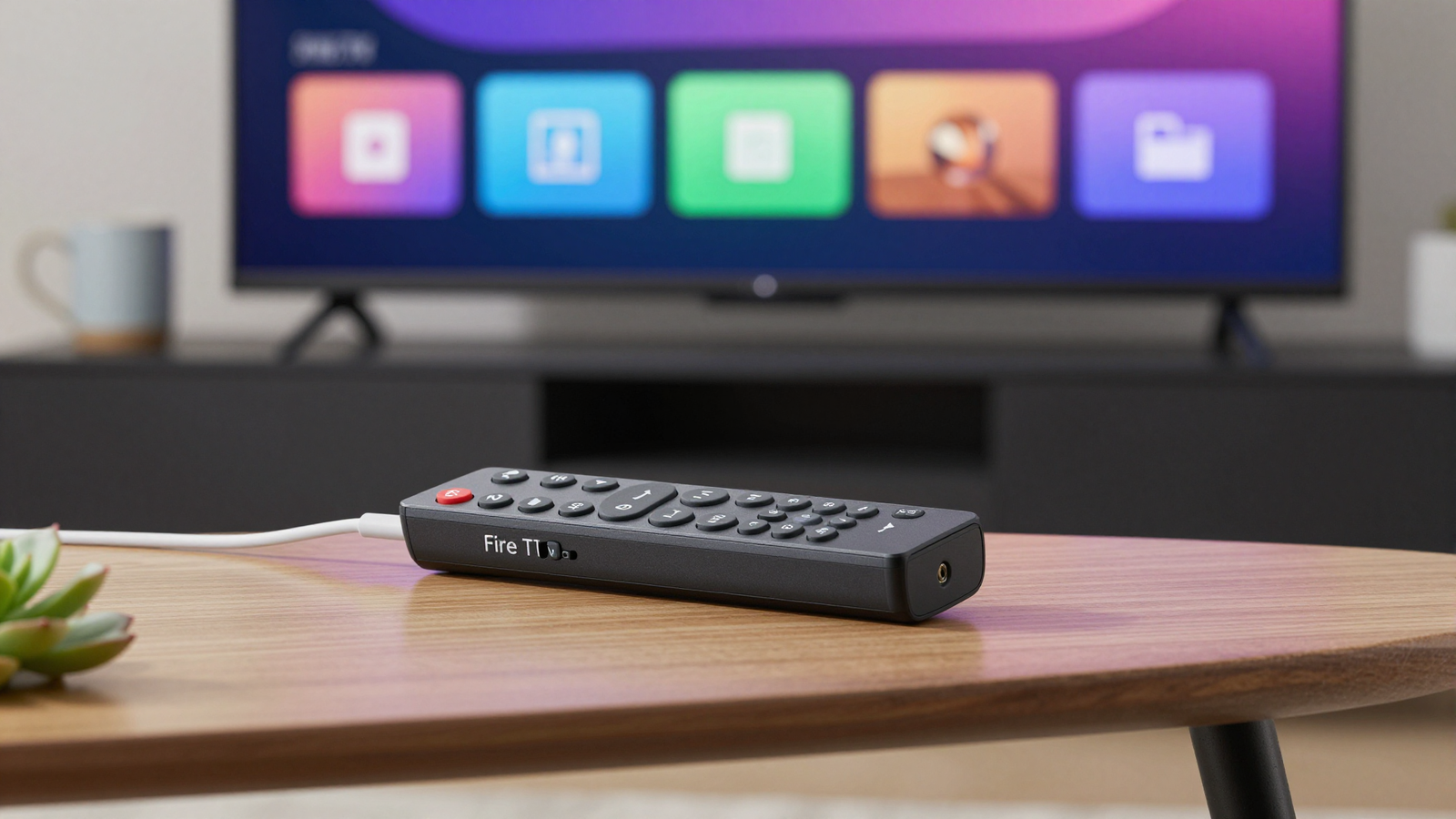
The resolution your IPTV service streams at depends on three factors working together: the bitrate your provider encodes at, the capability of your playback device, and the sustained bandwidth your broadband connection delivers at the device level during peak hours. Here is a clear breakdown of what each quality tier actually requires.
Bandwidth requirements by resolution
| Resolution | Minimum Speed Per Stream | Recommended Speed Per Stream | Notes |
|---|---|---|---|
| HD 720p | 8 Mbps | 10 to 15 Mbps | Suitable for smaller screens |
| FHD 1080p | 15 Mbps | 20 Mbps | Standard for most UK households |
| 4K UHD | 25 Mbps | 50 Mbps | Wired connection strongly recommended |
| 8K UHD | 80 Mbps | 120 Mbps | Emerging in 2026; requires full-fibre broadband |
Multi-stream households: the numbers you actually need
These per-stream figures compound quickly when multiple people in your home are streaming simultaneously. Here are realistic benchmarks for different household sizes:
- Single-person household, one 4K stream: 50 to 100 Mbps recommended from your router
- Two-person household, two simultaneous 4K streams: 200 Mbps recommended
- Family of four with multiple streams across different devices: 300 to 500 Mbps recommended
These figures assume a mix of IPTV and general internet usage running concurrently. If your household is also using video calls or online gaming at the same time, add another 10 to 20 Mbps per device to your calculations.
A note on 8K in 2026
8K IPTV is beginning to appear in premium service tiers in 2026, but it remains a future consideration for most UK households. Delivering 80 to 120 Mbps per 8K stream reliably requires a full-fibre broadband connection, and 8K-capable televisions are still a minority in UK living rooms. It is worth knowing the requirement exists and planning your broadband upgrade accordingly if 8K is on your radar.
VIP Server and Anti-Freeze Technology Explained
VIP servers and anti-freeze technology are the infrastructure behind truly stable live IPTV streaming. These are not marketing phrases. They refer to specific technical implementations that directly reduce the buffering and freeze events that affect roughly 10 to 15% of users during major live broadcasts.
What VIP servers actually do
A standard IPTV delivery route sends your stream through shared server infrastructure. When thousands of users all request the same live channel simultaneously, the server becomes a bottleneck. Packet queues build up. Delivery slows. Your screen freezes for a few seconds before catching up or dropping the stream entirely.
VIP server architecture solves this by providing dedicated routing paths that are not shared with general traffic. Your stream travels through infrastructure reserved specifically for live channels, with priority given at the network level. Combined with a low-latency content delivery network (CDN), the data takes the most efficient available route from the source to your device.
How anti-freeze technology works
Anti-freeze technology operates as an intelligent buffer management system within the streaming infrastructure. It pre-emptively identifies moments of potential packet loss, typically during high-concurrent-viewer events, and compensates by temporarily adjusting bitrate and pre-loading packets through an alternative routing path. The result is that you never see the freeze, because the system resolves the delivery issue before it reaches your screen.
This is the primary reason why the buffering statistic of 10 to 15% applies to the industry broadly but drops dramatically for services built on proper VIP server infrastructure. The technology is not universal. It requires significant investment in dedicated server capacity and intelligent network management, which is why it genuinely separates premium services from budget alternatives.
To understand how these technical factors should inform your choice of provider, the guide on comparing UK IPTV providers on technical merit provides a structured framework for evaluation.
British IPTV runs its service on VIP server infrastructure with anti-freeze technology built in, delivering 99% uptime across its full channel library including all PPV events at no additional cost.
Supported Devices: Which Hardware Works Best in 2026
IPTV is device-agnostic by nature, but some hardware handles live streaming considerably better than others. The difference usually comes down to processing power, Wi-Fi capability, and the quality of the IPTV player application available for that platform.
The top devices for UK IPTV in 2026
Amazon Fire TV Stick (4K Max): The most popular choice in UK households. Affordable, widely supported, and straightforward to set up. The 4K Max variant supports Wi-Fi 6 and 5 GHz natively, which matters significantly for performance. The standard Fire Stick also works well but is limited to Wi-Fi 5.
MAG Box: Hardware built specifically for IPTV. MAG boxes run a dedicated operating system optimised for IPTV delivery, which makes them exceptionally stable for live streaming. They are the preferred choice for users who want the most reliable performance without any configuration fuss. Most current MAG models support 5 GHz Wi-Fi and offer an Ethernet port for wired connections.
NVIDIA Shield TV Pro: The premium end of the Android TV ecosystem. The Shield has more processing power than any other consumer IPTV device currently available, handles 4K HDR live streams effortlessly, and supports Dolby Vision and Atmos passthrough. It is the best choice for home cinema setups where quality is the only consideration.
Apple TV 4K (3rd Generation): Excellent hardware, strong Wi-Fi 6 support, and smooth performance with compatible IPTV player applications. The main limitation is that sideloading applications is more restrictive than on Android-based devices, which limits your choice of IPTV player.
Android TV Boxes: A broad category ranging from very capable to extremely unreliable depending on the manufacturer. Stick with well-reviewed brands and ensure the unit supports 5 GHz Wi-Fi and has at least 2 GB of RAM for smooth 4K playback.
Smart TVs: Most modern Samsung, LG, Sony, and Hisense televisions support IPTV applications either natively or through Android TV or Tizen. Performance varies by model and the IPTV player application available on the platform. For maximum reliability, a dedicated streaming device connected to a Smart TV generally outperforms the TV’s built-in streaming hardware.
5 GHz Wi-Fi support: why it matters
| Device | 5 GHz Wi-Fi | Ethernet Port | 4K Support |
|---|---|---|---|
| Fire TV Stick 4K Max | Yes (Wi-Fi 6) | Via adapter | Yes |
| MAG Box (current gen) | Yes | Yes (built-in) | Yes |
| NVIDIA Shield TV Pro | Yes (Wi-Fi 6) | Yes (built-in) | Yes |
| Apple TV 4K (3rd Gen) | Yes (Wi-Fi 6) | Via adapter | Yes |
| Android TV Box (mid-range) | Varies by model | Usually yes | Varies by model |
Privacy and ISP Throttling: Staying Buffer-Free
A VPN is one of the most effective tools you have for maintaining consistent IPTV stream quality, particularly during peak viewing hours. When your ISP cannot identify your traffic as video streaming, it cannot apply the throttling policies that reduce your available bandwidth during busy periods. The result is more consistent speeds and fewer interruptions.
Setting up a VPN on Fire TV Stick: step by step
This process takes around five minutes and makes a meaningful difference to peak-hour performance.
- Open the Amazon Appstore on your Fire TV Stick and search for a reputable VPN application. Several well-regarded options are available directly in the store.
- Install the VPN application and open it.
- Sign in with your VPN account credentials, or create an account if you do not already have one.
- Select a UK server location. Choosing a server geographically close to you reduces the latency overhead the VPN introduces.
- Connect the VPN before opening your IPTV player application.
- Run a speed test on the device after connecting to confirm your throughput still meets the minimums for your target resolution.
- Open your IPTV player and load a live channel to confirm the stream is stable.
One important consideration: a VPN adds bandwidth overhead, typically between 5 and 10 Mbps depending on the protocol it uses. If your speed at the device level is already borderline for 4K, the VPN may push you below the threshold. In that case, either use the VPN while streaming at 1080p, or prioritise improving your underlying connection first.
For a complete guide to configuring IPTV applications alongside your VPN setup, the IPTV Smarters Pro configuration guide covers the full player setup in detail.

Pricing and Plan Comparison: Maximising Value for Every Household
Premium UK IPTV subscriptions typically range from around £10 to £15 per month for a rolling monthly plan, with meaningful discounts available on longer-term commitments. Understanding where the value lies depends entirely on your household size and viewing habits.
How the plan lengths compare
| Plan | Total Cost | Effective Monthly Cost | Best For |
|---|---|---|---|
| 1 Month | £12 | £12.00 | Testing the service, occasional use |
| 3 Months | £25 | £8.33 | Short-term commitment with savings |
| 6 Months | £35 | £5.83 | Regular viewers wanting strong value |
| 12 Months | £50 | £4.17 | Families and heavy users; best value |
The 12-month plan works out at less than a third of the monthly plan’s cost per month. For a household that watches consistently, the saving over a year is substantial. There are no contracts attached to any plan, and a free trial is available before you commit to anything.
For a more detailed breakdown of what different plans include and how to approach the purchasing decision, the guide on what to expect from a UK IPTV subscription is worth reading before you buy.
If you want an independent perspective on how to approach buying IPTV in the UK, including how to evaluate providers before spending anything, the honest guide to buying IPTV in the UK covers the process in full. And if you would prefer to test the service at no cost first, the guide on making the most of a UK IPTV free trial explains exactly what to check during an evaluation period.
FAQ: Your IPTV Questions Answered
What internet speed do I need for 4K IPTV in 2026?
For a single 4K IPTV stream, you need at least 25 Mbps measured at your streaming device during peak hours. The recommended figure is 50 Mbps per stream to provide headroom for network fluctuations. For multiple simultaneous 4K streams in the same household, plan for 200 Mbps for two streams and 300 to 500 Mbps for a family of four. These figures should be your measured speeds during the 7pm to 11pm window, not the headline speed on your broadband contract.
How do I stop buffering during live sports on my Fire Stick?
The most effective steps in order of impact are: switch to 5 GHz Wi-Fi or use an Ethernet adapter, turn off data monitoring in the Fire Stick settings, install a VPN and connect to a UK server before launching your IPTV player, and ensure your IPTV service uses VIP server infrastructure with anti-freeze technology. If you have done all of these and still experience buffering, run a speed test directly on the Fire Stick during peak hours to confirm your actual throughput. If it falls below 25 Mbps for 4K, the issue is your broadband package rather than your device configuration.
What is the typical monthly cost for a premium sports and movies IPTV package?
A rolling monthly plan from a premium UK IPTV provider typically costs around £10 to £15. With British IPTV, the monthly plan is £12, which includes 40,000 live channels, 200,000 VOD titles, all PPV events at no extra cost, and 4K streaming capability. Longer plans offer significant savings, with the 12-month plan working out at £4.17 per month, which represents exceptional value compared to any traditional pay-TV alternative.
Does a VPN affect IPTV stream quality?
A VPN introduces a small bandwidth overhead of roughly 5 to 10 Mbps depending on the protocol it uses. For connections that comfortably exceed the minimum streaming requirements, this has no perceptible effect on quality. The benefit in preventing ISP throttling almost always outweighs the small overhead cost. If your connection is borderline, connect to a VPN server that is geographically close to you to minimise latency and reduce the overhead as much as possible.
Which is better for IPTV: a Fire TV Stick or a MAG box?
Both are excellent choices, but they suit different users. A Fire TV Stick offers a broader app ecosystem and is more familiar to most UK households. It requires some configuration to perform at its best for live IPTV. A MAG box is purpose-built for IPTV, requires minimal configuration, and tends to be more stable for live streaming out of the box. If you want the simplest possible setup with the least configuration, a MAG box is the better choice. If you want a versatile device that handles IPTV alongside other streaming apps, the Fire TV Stick 4K Max is the more practical option.
What does “What Is IPTV” actually mean in practical terms for a UK viewer?
In practical terms, IPTV means your television content, whether live channels, on-demand films, or PPV events, arrives through your broadband connection rather than a satellite dish or aerial. You need a broadband connection that meets the speed requirements for your target resolution, a compatible device, an IPTV player application, and a subscription with a reliable provider. Setup takes minutes once you have a subscription, and there is no hardware installation beyond what you already have at home.
Conclusion
Internet Protocol Television has matured to the point where it delivers a genuinely superior viewing experience compared to traditional broadcast, provided you have the right setup. The technology itself is straightforward: your content travels over your broadband connection, which gives you flexibility, access to an enormous content library, and the ability to stream at resolutions up to 4K and beyond. The challenges, primarily peak-hour buffering and ISP throttling, are entirely solvable with the steps covered in this guide.
The key variables are your broadband speed at the device level during peak hours, the 5 GHz Wi-Fi configuration on your streaming device, the presence of a VPN to prevent throttling, and the quality of the IPTV provider’s server infrastructure. Get those four elements right and the experience is genuinely excellent. The Fire TV Stick setup steps in this guide address the most commonly missed configuration issues, and the bandwidth tables give you concrete numbers to work towards.
Your next step is straightforward. Test the service with a free trial, check your stream quality during a busy Saturday evening, and if the performance meets your expectations, choose the plan length that matches your household. The 12-month plan represents exceptional value for regular viewers, but there is no obligation to commit before you are satisfied.
For a broader look at how to choose the right provider for your specific needs, the guide on selecting the best IPTV service in the UK provides a useful comparison framework. And if you want to understand more about what differentiates premium from budget services at the technical level, the best IPTV UK guide breaks it down clearly.
📲 Get British IPTV via WhatsApp – 24/7 UK Support
Free trial available. No contracts. Money-back guarantee.